Recently, my Mac Studio started acting weirdly, so I decided to wipe the hard drive clean and reinstall my system. This post details the tools and applications I installed to this new system.
My goal for this new system is to keep it lean and minimal, so that it
- starts up quickly,
- remains stable, and
- remains easy-to-maintain.
With that in mind, let’s start with the foundation of any good setup: typography.
Core System Essentials
Fonts
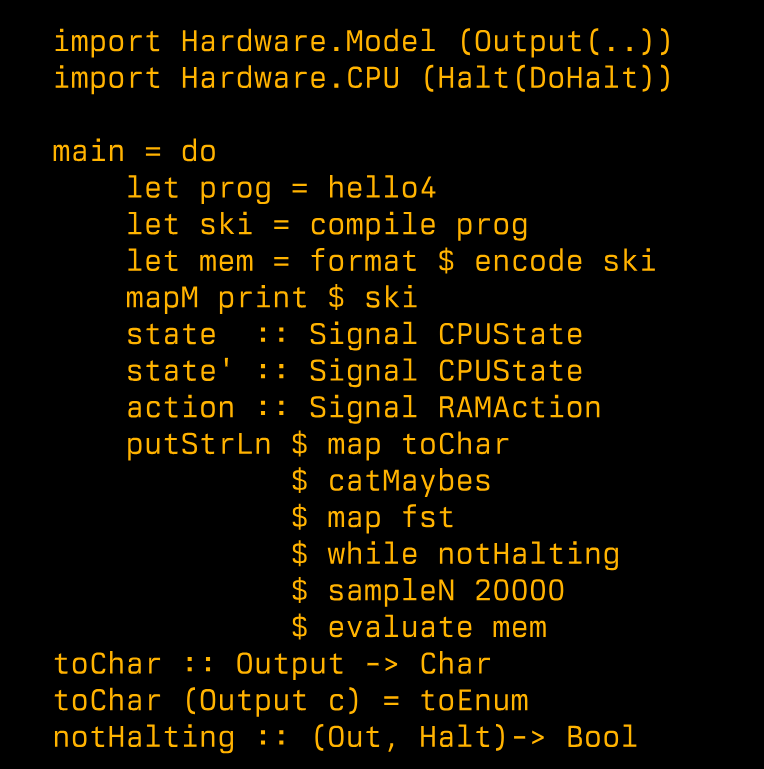
Berkeley Mono font.
I like to use a few monospace fonts depending on my mood and the use case, here are the ones I added to my system:
- MonoLisa: My go-to font for coding.
- Berkeley Mono: There is no other font that says “Unix” better than this one. That’s another favorite font of mine that I switch and use frequently.
- Pragmata Pro: This is more of an acquired taste: Not everyone’s cup of tea; but if you spend some time and get used to it, you’ll love it. It’s especially great when horizontal space is premium; like checking 20 logs at once.
- Operator Mono: Beautiful font, but (to me) a bit overhyped. Still, I like it and use it occasionally.
Beyond fonts, the way I manage windows and automate file operations forms the backbone of my daily workflow.
Window Manager
I use Lasso for window management. Granted, it requires its own post too, I can say that it is one of the things you don’t know you needed until you start using it.
File Automation
I use Hazel to automate file management. It’s yet another app that you don’t know how badly you need until you start using it.
Storage and Backups
With the core system essentials in place, let’s talk about something equally critical: keeping your data safe.
NAS Setup
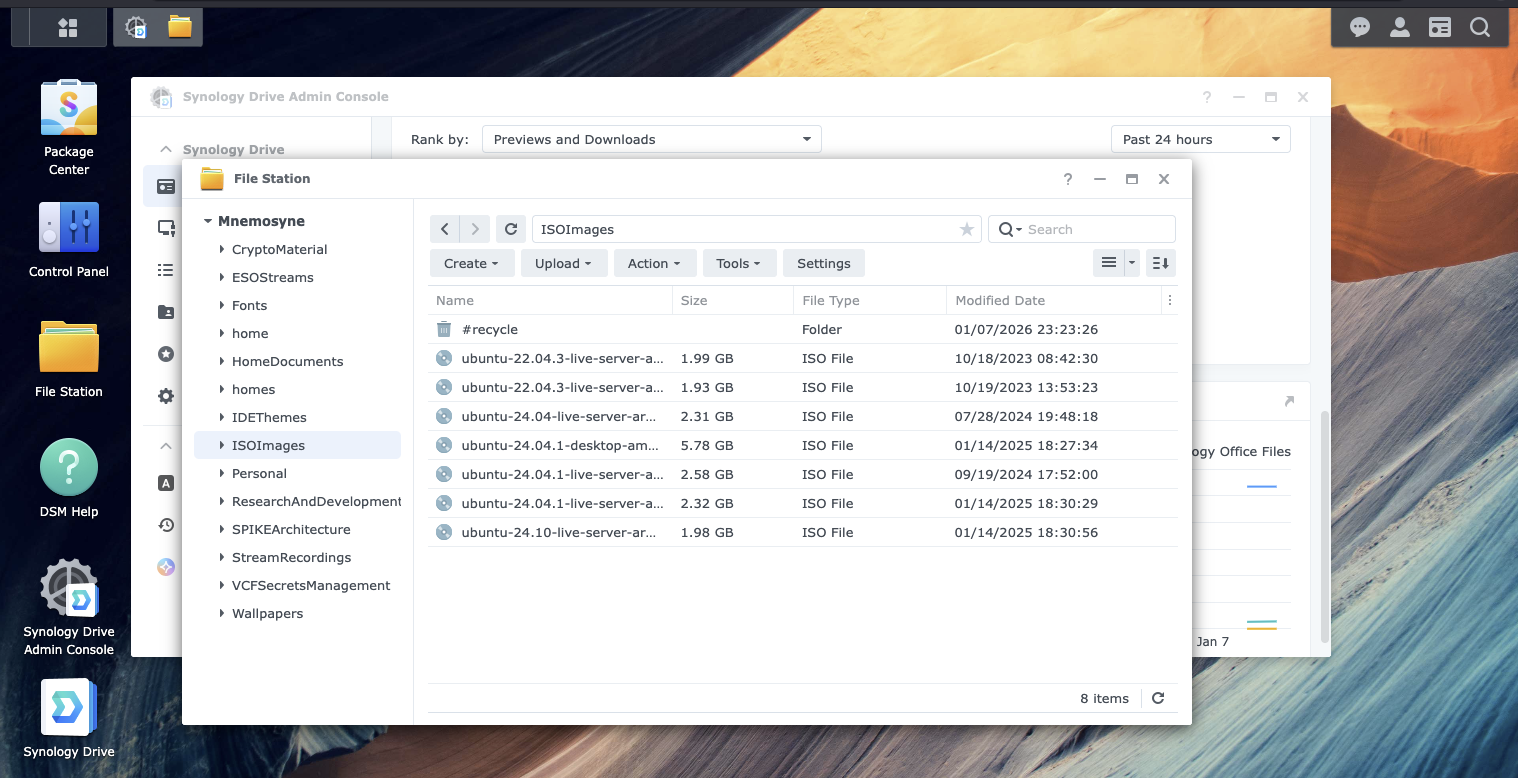
Synology Admin UI.
I got a Synology DS1522+ and five 8TB Seagate IronWolf hard drives. Using them together with SHR-2 RAID which gives me slightly more than 20TB of storage, while allowing failure of two drives without losing data.
That gives me more than enough space to store my data, including stream VODs, virtual machine images, and any other stuff that can consume a lot of space.
Though, while RAID is great and gives you redundancy, it’s not a replacement for backup. So I use, HyperBackup (from within the Synology Admin UI), to back up my important data to a Backblaze B2 bucket.
After scheduling the backups and verifying that they work, and also setting up email notifications, so that when a backup fails, or when a drive has a problem, or any other problem occurs in the system, I can confidently forget about backups once and for all: It will just work behind the scenes.
Synology is one of the best NAS solutions I’ve ever used. It deserves a post of its own; maybe I’ll write one in the future.
Streaming and Media Production
Now that we’ve covered the essentials and storage, let’s dive into what takes up most of my time: streaming and content creation.
Audio Hardware
My streaming gear consists of:
- Shure SM7B XLR Mic (MV7 users might disagree, but I do believe that “SM7B kicks the llama’s ass”)
- CloudLifter CL-X because SM 7B is gain-hungry.
- Babyface Pro FS because it’s one of the best audio interfaces that pairs really well with SM 7B.
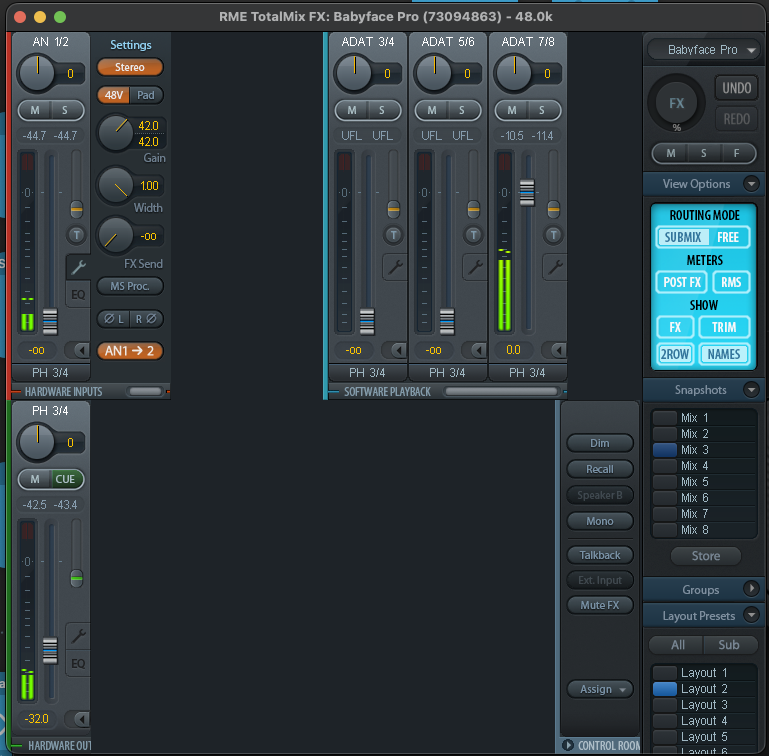
RME TotalMix.
After installing the drivers for Babyface Pro FS, RME TotalMix FX (the software interface for Babyface Pro FS) comes pre-installed on my Mac.
Along with RME TotalMix, I also installed DigiCheck NG, which is excellent for monitoring my vocals and overall stream output gain.
Again, setting up TotalMix, and DigiCheck NG deserve its own post.
Camera and Video
For camera, I use OBS Tiny 2, I can confidently say that there is no better webcam for streaming. It can compete with beefier cameras like Canon EOS and Nikon D850. Honestly, I am still surprised a USB webcam can stream at 4K with crisp, crystal-clear video.
After installing OBSBot Center and its drivers, I’m good to go.
One thing I did, though, was to disable any AI feature, because at times it can interpret my voice as a command, or my gesture to zoom and pan the camera. I don’t want that. I prefer to control the camera manually and want its focus to remain where I want it to be.
One additional software I had to install in my particular case was CameraGraph because for some reason the streaming software I use (Wirecast) was not happy with the camera feed output, so I had to create a virtual camera feed from the webcam.
Streaming Software
For streaming, I use:
- Wirecast for streaming.
- OBS Studio for recording.
This way, I can send different audio background music tracks to the live stream and the recorded VODs. This is especially useful when I publish the VODs because I may get copyright strikes otherwise.
Audio Pipeline
For audio pipeline setup, along with TotalMix, I use Audio Hijack and Loopback. Again, these two require a dedicated post of their own. But here are some screenshots to give you an idea:
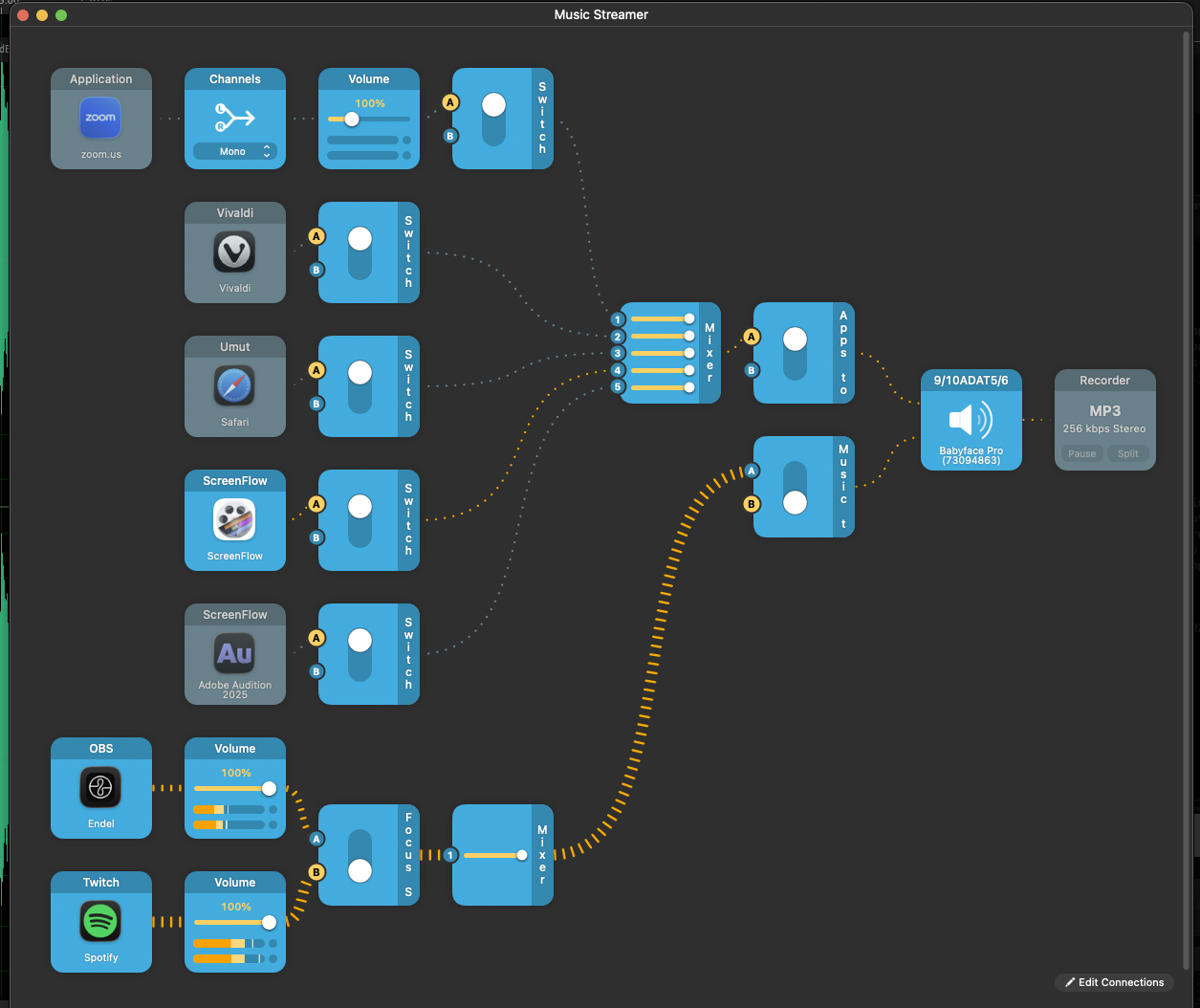
Music streaming AudioHijack session.
Stream processing AudioHijack session.
I also use Native Instruments Ozone Advanced for real-time audio processing such as compression and equalization.
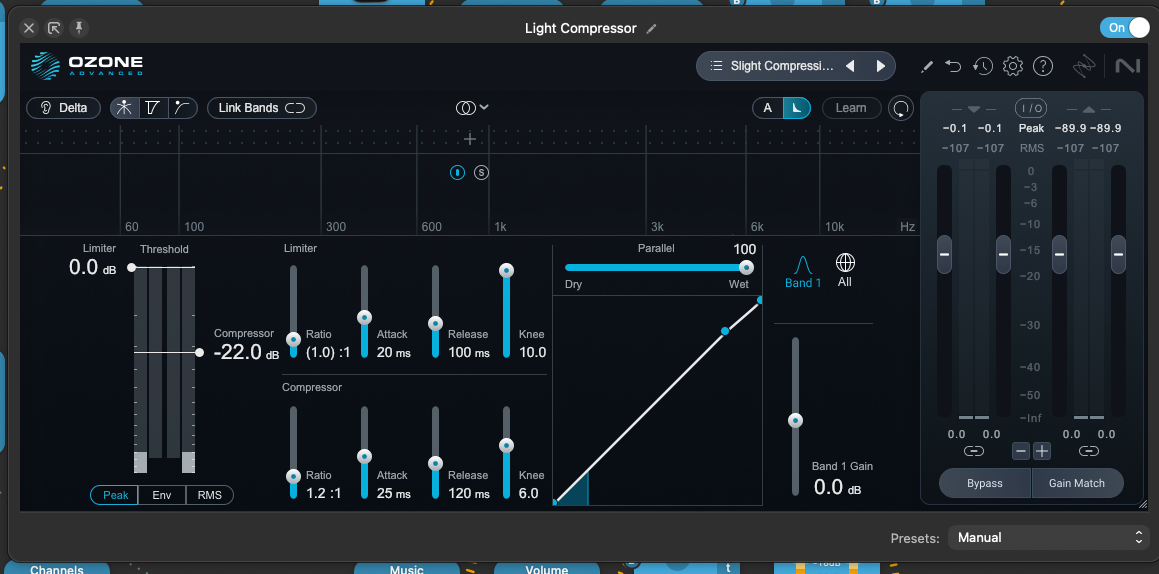
Ozone Compressor in action.
Post-Production
For post-production and VOD creation I use ScreenFlow and Adobe Audition.
I also use Izotope RX toolset (from the same company as Ozone) for various audio post-production work.
Ah, Stream Deck—no streaming setup is complete without it. Again, it requires its own post.
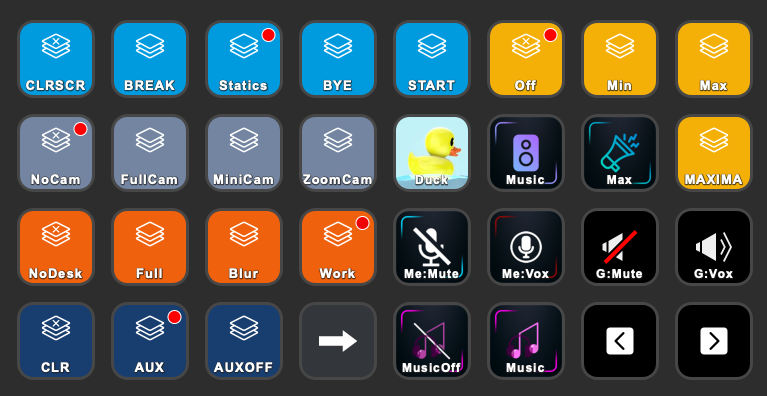
Stream Deck.
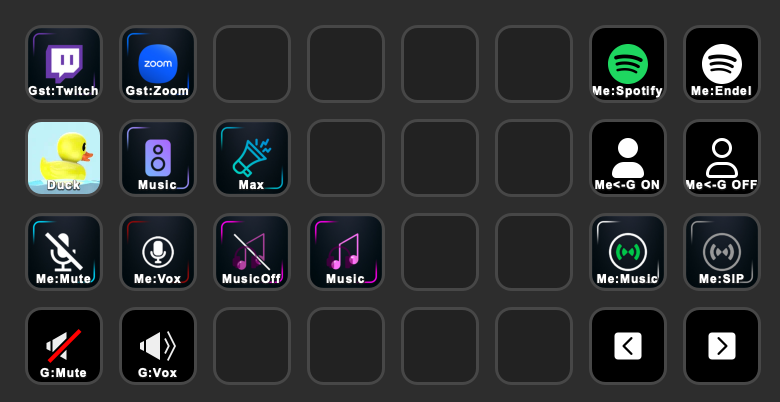
Stream Deck.
That covers the streaming part for now, I guess.
Hardware and Peripherals
Switching gears from software to hardware, let’s look at the physical tools that make daily work more comfortable and efficient.
Mouse and Keyboard
I use a Logi MX Master 4 for the mouse and cannot recommend it enough. Especially the action ring and the haptic feedback, and needless to say, the lightning-fast scrolling makes it a productivity booster.
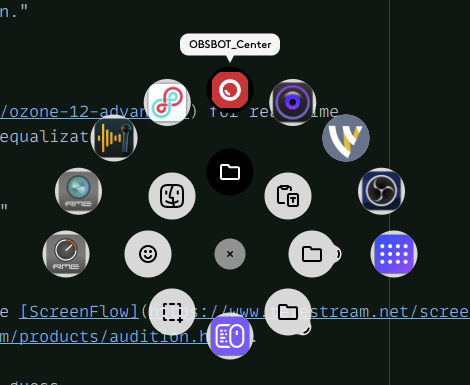
Logi MX Master 4 action ring.
For keyboard, I opted for a compact form-factor: a NuPhy Halo 75 V2 with Brown Max switches, which gives a good level of tactile feedback while still keeping it quieter than Cherry MX Blue or similar switches.
The keyboard is programmable with QMK; maybe a dedicated post for that will come later on, too.
Productivity and Daily Tools
With hardware covered, let’s explore the software that helps me stay organized and productive throughout the day.
Visual Design and Diagramming
For graphic work, I use the following:
- Sketch—I still believe it’s better than Figma.
- Wondershare Edraw Max which is a great tool for technical diagrams.
Music
I have two apps that I use to listen to music:
- Endel: I use Endel for both background music for my stream VODs (to avoid copyright strike) and also for listening to it while I’m working to calm my brain and focus.
- Spotify: Spotify is my main music app.
Video Conferencing
I use Zoom for video conferencing. I also use Zoom as the video feed when I accept guests to my stream. I’ve found that it works more reliably than any other solution (including Twitch’s “Guest Star” feature) that I’ve tried.
I don’t install any other video conferencing solution until I have to, but sometimes a peculiar friend might ask “I use Jitsi, and Jitsi only; damn capitalism!” and I may end up installing it.
Timezone Management
I work with several timezones from the Pacific Timezone, to London, to Italy, to India and Australia. I find World Clock Pro a great tool for managing multiple timezones. It has a nice interface where you can drag a slider to see, for example, what 9pm in your timezone will look like in London and Tokyo. It helps me a lot when I need to plan meetings and other events.

World Clock Pro.
General Productivity
While Spotlight is a great search tool, if you need more powerful search functionality over everything on your Mac, then HoudahSpot is one of the best options that give you a lot of flexibility and customization options.
To manage distractions and keep track of tasks, I use:
For spelling, document editing, tone correction, and other editorial tasks I use Grammarly (*rebranded as “SuperHuman”).
To annotate my desktop in meetings and streaming sessions, I use Presentify.
As my main browser, I’m using Vivaldi. It needs some exploration and getting-used-to, but especially, being able to group your browsing sessions into “workspaces” is a huge productivity booster.
For file transfer needs, I use Transmit.
System Maintenance
Keeping a system healthy requires some attention. Here are the tools that help me monitor and maintain my setup.
Command Line Tools
I spend part of my day in the terminal, so having additional tools that make my life easier helps a lot. Here are some of the command line tools that I have installed to my system:
- HomeBrew is the first thing to install for any Mac user.
- Mcfly is a fuzzy search tool for the command-line. It’s not strictly necessary, but I like its user experience.
- Starship is a cross-shell prompt tool that is highly-customizable.
- Tokei is a code counter tool. I use it to see how many lines of code various parts of my projects contain. It’s useful to see things like how much code comment is in a project as opposed to actual code (to me, the more commented a project, the better).
- Dust is a disk usage analyzer tool. I typically use DaisyDisk because it gives more options to handle the files, and it provides a better and more interactive visualization; however, sometimes being able to see the disk usage in a terminal is useful too.
- Bat is a galactically better version of
cat. - Procs is a process viewer tool. You can think of it as a modern replacement for
ps. - Eza is a modern
lsreplacement. - Mole is a tool that keeps your Mac clean. It can purge unnecessary files, uninstall unwanted apps in a batch, analyze your Mac, and do various other optimizations. I strongly recommend it instead of using a bloated tool like CleanMyMac or MacCleaner.
Drive Health
My NAS can take care of its own health and notify me when there are failures or degradation. Yet that’s not true for my system disk and other external drives.
To monitor these drives, I have Drivedx installed.

Drive DX.
I also use Backblaze to back up my system disk and external drives to recover them in case of a hardware failure.
Network Monitoring
Occasionally, I need to figure out what’s what in my local home network. Although that can be done with simple CLI commands, IP Scanner Ultra gives a better and more intuitive overview of the network topology.
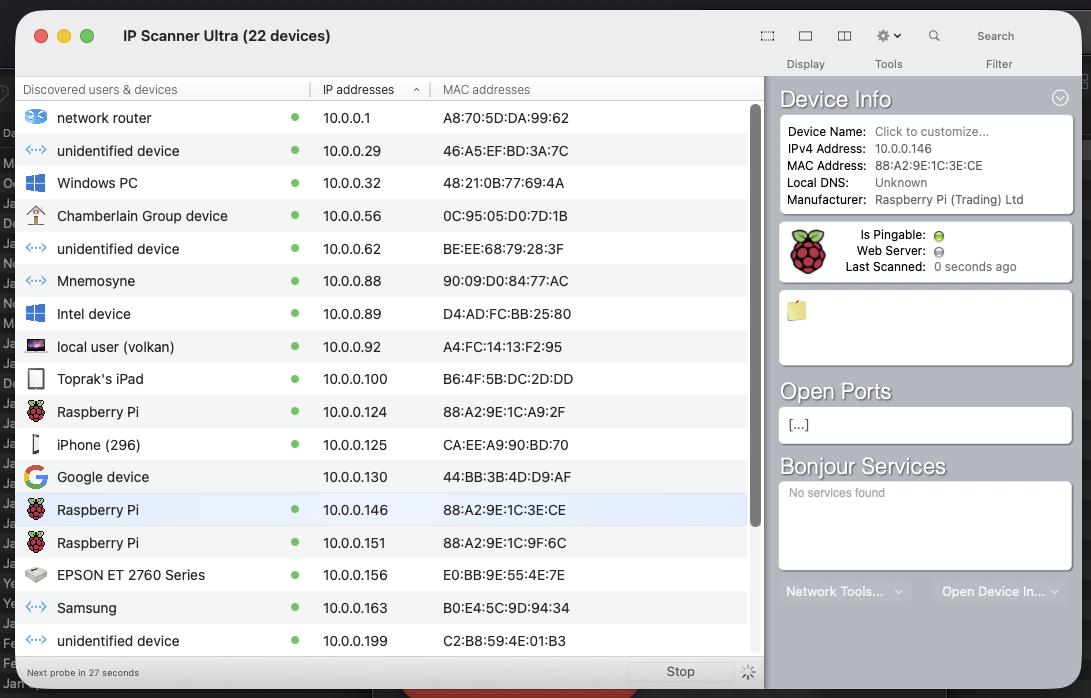
IP Scanner Ultra.
Security
Security is non-negotiable, especially when you have sensitive data and credentials scattered across multiple systems.
I use Yubikey as my hardware security key and primary authentication method whenever I can. So, one of the first things I install on my system is YubiKey Manager.
Additionally, I have 1Password to manage my passwords, licenses, secrets, and other sensitive information.
Sometimes, I need to transfer sensitive data over relatively insecure channels. For that, I use Encrypto to encrypt them before sending over the wire.
Text Editing and Note-Taking
When it comes to writing, I have a few specialized tools for different purposes:
- Sublime Text for quickly taking notes and writing some lightweight code.
- Monodraw for creating ASCII art diagrams.
- Ulysses because it’s far more than just a Markdown editor.
- Tot for synchronizing notes across devices. This is another app that you don’t know how badly you need until you start using it.
Other heavy-duty editors and IDEs exist exclusively in my Development Machine (see the next section).
Software Development
Now we get to the meat of my daily work: software development. I’ve made some deliberate choices here to keep my streaming machine stable.
I do almost all my software development by remotely connecting to my Windows Intel NUC via Windows App.
I choose to use a separate machine for development because development environments can become complex and unstable in time, and I’d rather keep my streaming setup stable. Additionally, keeping “development” focused on a separate machine allows me to focus: The machine is dedicated to development, and I don’t have anything else to distract me from it.
Along with Windows, I also have Parallels Desktop for running dedicated local Linux virtual machines, when Windows Subsystem for Linux doesn’t fit for the use case.
Windows Development Environment
Windows is my main development machine. Here are some of the tools I use on Windows:
- Windows Subsystem for Linux
- Windows Terminal
- Microsoft PowerToys
- JetBrains Toolbox
- GoLand
- WebStorm
- Ubuntu (WSL)
- Obsidian
- Standard Notes
That’s pretty much it for Windows too. I want to keep my development setup lean and stable as well.
I also have Slack and Discord installed on Windows because I want to keep my Mac streaming setup stable, so I don’t want to introduce anything unnecessary to the system if I don’t have to.
Conclusion
Setting up a new system is always a good opportunity to reflect on what you truly need versus what you’ve accumulated over time. By starting fresh, I was able to be more intentional about every tool I installed.
The key takeaways from this setup are:
- Separation of concerns: Keeping my streaming machine stable by offloading development work to a dedicated Windows machine has been a game-changer.
- Automation first: Tools like Hazel, HyperBackup, and Stream Deck reduce manual work and let me focus on what matters.
- Quality over quantity: Investing in good hardware (SM7B, Babyface Pro FS, MX Master 4) pays dividends in comfort and productivity.
This list will inevitably evolve as my needs change, but for now, this is the foundation that keeps me productive and sane. If you’re setting up a new system, I hope this gives you some ideas to consider.